
OnlyWin Casino Login
Sign up today and get instant access to your account with 24/7 live chat support.
Top OnlyWin Casino Games





All Games





Can't get into your OnlyWin Casino account? Log in using your registered email and password, then verify by email. If that doesn't work, you may have forgotten your password, not received the confirmation email, have verification pending, or have a self-exclusion lock. English live chat is available 24/7.
How to Log In: Step-by-Step
Access your OnlyWin Casino account with the email and password you set at registration. The platform then confirms the sign-in through your e-mail as the second step.
Launch your browser and go to the OnlyWin Casino website.
Click the Log In button.
Type in the email address you used to register and your password.
Check your email for the confirmation message and click to verify.
Go back to the website - your account will be active.
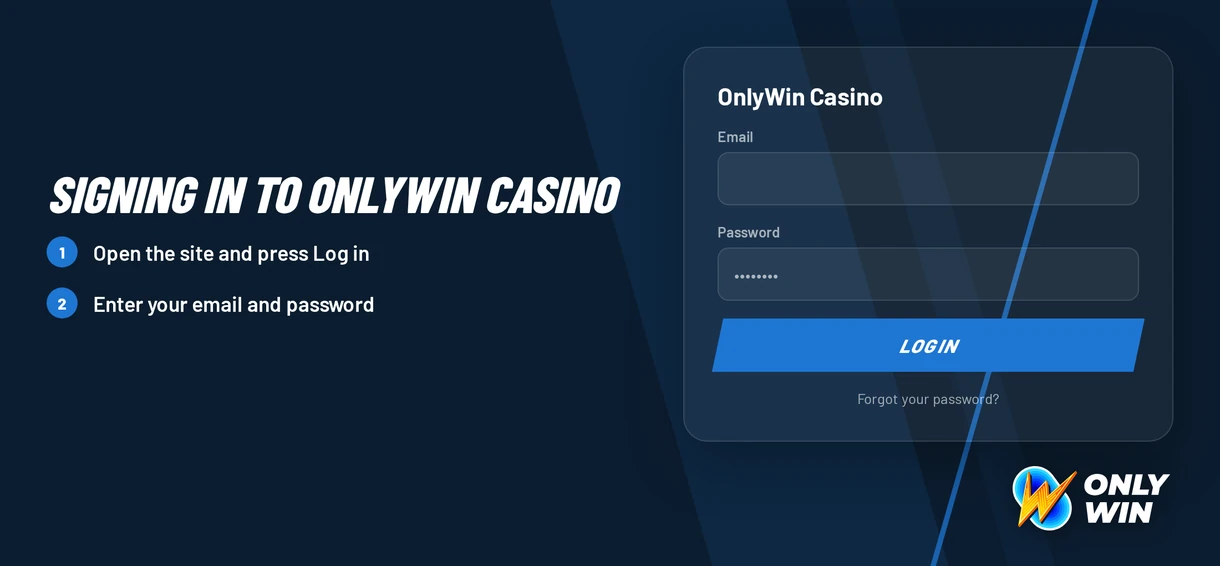
Make sure you use the same email address you registered. If the confirmation email isn't in your main inbox, look in the spam folder.
Login Problems and Fixes
Common login issues include typing errors, an outdated browser, or not receiving the confirmation email.
| Problem | Likely Cause | Quick Fix |
|---|---|---|
| Wrong password message | Typo, caps lock or an old password | Retype carefully, then reset the password |
| Confirmation e-mail missing | Spam folder or a mistyped address | Check spam, then contact live chat |
| Page loads but login fails | Old cookies or cached files | Clear cookies and cache, reopen the browser |
| Account will not open after self-exclusion | Active self-exclusion period | No early reversal - see the locked account section |
| Access held up by verification | Documents not yet submitted or reviewed | Send the three required documents |
The only extra step after your password is the e-mail confirmation, so make sure you can open that inbox.
To remove cookies and cache, follow these steps on your device:
- Access your browser settings and find the privacy or history section.
- Choose cookies and cached images and files.
- Delete them, then shut all browser windows.
- Restart the browser and attempt to log in once more.
How to Reset Your Password
You can handle a forgotten password yourself without contacting support. Reset links are sent to your account's email, so you must be able to open that inbox.
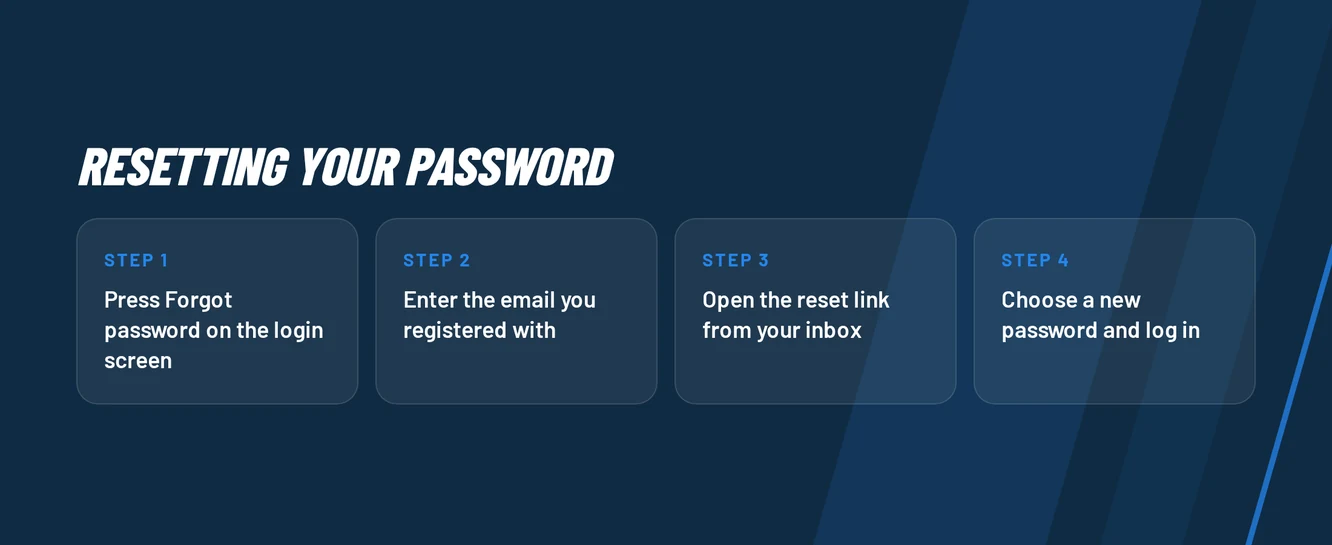
- Go to the login page and click the forgotten password link.
- Provide the email address you used during registration.
- Open the email you receive and click the reset link inside.
- Pick a fresh password and use it to log in.
- Then go through the usual email confirmation step.
First, look in your spam folder. If the message isn't there, get in touch via live chat.
Account Locked or Suspended
Self-exclusion is the only lock with a strict rule. It begins right away and cannot be undone early, even by support. You select the duration yourself in your profile settings.
Available self-exclusion periods:
- 6 months
- 1 year
- 3 years
- 5 years
- Permanent
If you aren't self-excluded but still can't access your account, follow these steps in order:
- First, double-check your email address and password are right.
- Next, reset your password and finish the email confirmation.
- Then, clear your browser's cookies and cache and attempt to log in again.
- If that fails, contact live chat and request a live agent to check your account.
- As a last step, e-mail [email protected] from your registered address if chat didn't work.
Self-exclusion should act as a safety net. Talking to someone can help. Ontario players can call ConnexOntario at 1-866-531-2600.
KYC Verification
Verification needs three documents: an ID, proof of address from the last 3 months and proof of your payment method. You submit them to OnlyWin Casino support for review, and any access that requires verification returns once the check is complete.
To clear a pending check:
- Have all three documents ready before you begin.
- Ensure each page is clear, full, and easy to read.
- Use live chat or email to send them.
- Wait for support to confirm the review is finished.
Before sending, check the issue date: proof of address must be no older than 3 months.
Logging In on Mobile
OnlyWin Casino does not have an iOS or Android app. You access the fully responsive mobile site through Safari, Chrome, or any other phone browser. Both the iOS and Android experiences are web apps.
| Feature | Status |
|---|---|
| iOS | Mobile browser or web app |
| Android | Mobile browser or web app |
| Biometric login | No |
| Push notifications | No |
You must enter your password on every device, as fingerprint or face unlock is not available. However, you can still add a shortcut to your home screen:
- Launch OnlyWin Casino in your phone's browser and sign in.
- On iPhone, tap the Share icon in Safari, then select Add to Home Screen.
- On Android, open the Chrome menu and tap Add to home screen.
- Give the shortcut a name and confirm the action.
The shortcut opens the same website, so the sign-in process and email confirmation remain unchanged.
Contact Support
Support is open around the clock, in English only.
| Channel | Availability | Details |
|---|---|---|
| Live chat | 24/7 | AI bot first, live agent on request |
| FAQ | 24/7 | Self-service answers |
Follow these steps in order:
- First, describe your issue to the AI bot in live chat.
- Request a live agent if the bot cannot resolve it.
- Next, e-mail info@onlywins.casino from the address registered on your account.
- Include verification documents if your case involves KYC checks.
Write in English and provide the email linked to your account to help the agent locate it faster.
FAQ
OnlyWin Casino is for players aged 19 and older, or 18 and older in Alberta, Manitoba and Quebec. Please gamble responsibly with money you can afford to lose. If gambling stops being enjoyable, you can use the self-exclusion tool in your profile settings.